
● REC · How it records
How dash cam loop recording works
Your camera never runs out of space because it keeps reusing the same card — quietly recording over the oldest clips. Here is exactly how that loop works, and how to keep the clip you actually need before it’s gone.
The catch nobody mentions
The clip you need is the one it already erased
A dash cam that records non-stop has a problem: a memory card is finite, but the road isn’t. So the camera makes a quiet trade — to keep recording, it records over the oldest footage. That is loop recording, and it is exactly what you want… until the morning you go looking for last Tuesday’s near-miss and it is already gone.
The good news: the footage that matters almost never gets lost by accident. It gets lost because nobody told the camera to keep it. Understand the loop and that stops happening.
Two ways a clip disappears
1. The loop lapped it. The card filled and your clip was the oldest unlocked file, so it was overwritten.
2. It was never locked. Nothing flagged it as important, so the loop treated it like any other minute of road.
The 30-second answer
Loop recording, in one breath
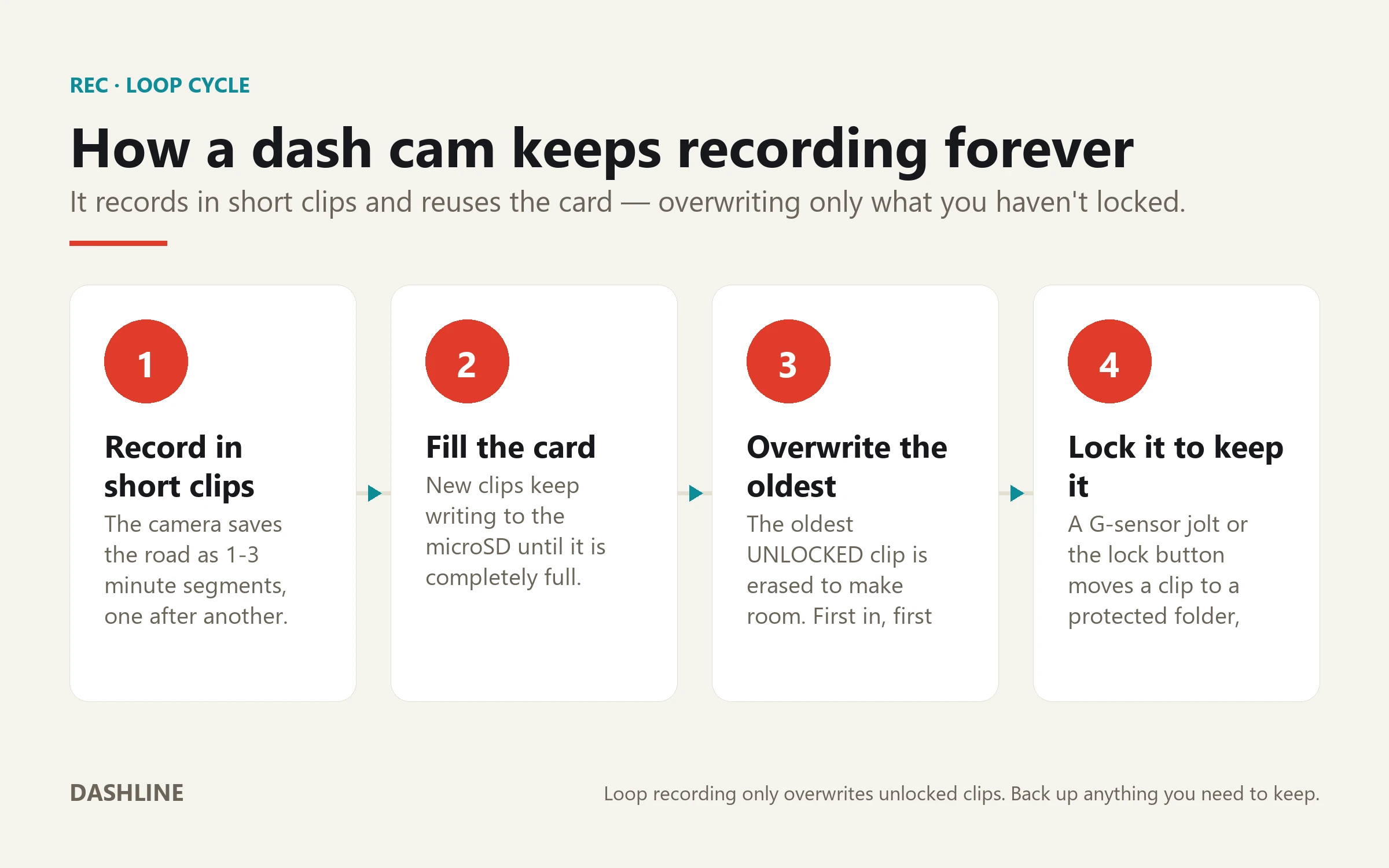
A dash cam records the road in short clips — usually 1 to 3 minutes each. This nonstop cycle, which some cameras call cyclic recording, saves each clip to the microSD card one after another until the card is full. Then, instead of stopping, it deletes the oldest unlocked clip and records over it. Oldest out, newest in — forever. Any clip you lock (by hand, or automatically when the G-sensor feels a jolt) is moved aside and skipped by the loop, so it survives.
REC · loop cycle
How a dash cam keeps recording forever
It is a four-step cycle the camera repeats every minute of every drive. The only step you control is the last one.
Try it
Flip the lock. Watch what the loop does.
Same clip, same full card. The only difference is whether you locked it.
Unlocked clip · part of the loop
This clip is just another minute of road. Nothing flagged it as important.
When the card fills, the camera looks for the oldest unlocked file — and if that’s this one, it gets recorded over. No warning, no recycle bin. Gone.
Locked clip · protected folder
You pressed the lock button — or the G-sensor felt an impact and locked it for you.
The clip moves to a separate protected folder on the same card. The loop skips it completely. It stays put until you delete it or clear space for more.
Heads up: locked clips still live on the card. Save too many and the loop runs out of room — clear the protected folder onto your phone or PC now and then.
Settings, decoded
Loop recording settings, in plain terms
Every dash cam buries these in a menu with cryptic labels. Here is what they actually do — and the honest tip for each.
| Setting | What it does | Honest tip |
|---|---|---|
| Clip length | 1, 3 or 5 minutes per file | Shorter clips are easier to share — but make more files to scroll through. |
| Overwrite order | Oldest unlocked clip first (FIFO) | The loop never touches a locked file — it just skips to the next unlocked one. |
| Auto-lock (G-sensor) | Impact locks the current clip | Turn sensitivity up for parking, down if speed bumps keep triggering it. |
| Manual lock | Emergency button or the app | The fastest way to save something you just saw — press it while it’s still recording. |
| Where locked clips go | A separate protected / “Event” folder | They’re safe there, but they still use card space. Empty it regularly. |
| Format cycle | Reformat the card monthly | Clears fragmented files and old locks so the loop keeps writing cleanly. |
The card is the loop
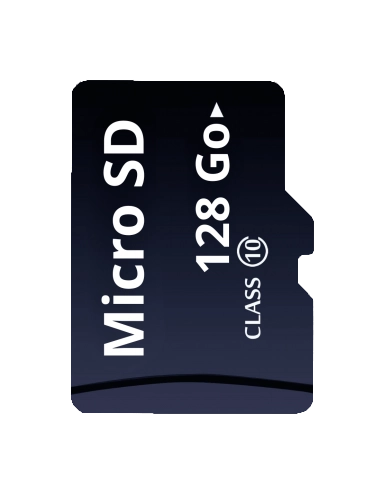
How far back you can see is just card size
The loop doesn’t decide how much history you keep — the card does. A bigger card, or a lower resolution, simply means more minutes fit before the loop laps back to the start. When the card is full it doesn’t stop recording; it starts forgetting, oldest first.
There is a second reason card choice matters: a dash cam writes to it constantly, all day, for years. Ordinary microSD cards aren’t built for that and fail silently. Use a high-endurance card, and if you want the exact number of hours yours holds, run the numbers with our dash cam storage calculator.
Your part
Never lose the clip that matters
Loop recording does its job automatically. These four habits make sure the one clip you’ll ever really need is still there when you go looking.
Turn on auto-lock
Enable G-sensor event recording so a real jolt saves the clip for you, hands-free. It’s the safety net for the moments you can’t react to in time.
Learn the lock button
Find the manual lock (or the app’s save button) before you need it. See something — a bad merge, a scrape, an argument — and press it while it’s still recording.
Pull the clip that matters
Get important footage off the card the same day, over Wi-Fi to your phone or via a card reader. A locked clip is safe from the loop, but it’s still just one card. If it’s evidence after a collision, back it up twice.
Clear and refresh
Empty the protected folder now and then so locked clips don’t choke the loop, and reformat the card monthly. Swap in a fresh high-endurance card about once a year.
Straight talk
What loop recording can’t do
The loop is a genuinely clever trade-off, not magic. Knowing its limits is what keeps your footage — and your expectations — intact.
Loop means overwrite
By design, unsaved footage doesn’t last forever. Anything you want to keep has to be locked or copied off — the card is a rolling window, not an archive.
Cards wear out quietly
Constant writing kills cheap cards, often with no warning until a clip you needed is corrupt. High-endurance cards and a monthly reformat are the fix.
A full card of motion clips can bury the hit
In a busy car park, motion-triggered parking clips can fill the card fast. Impact-locked events are the reliable catch — don’t rely on motion alone.
Locked isn’t backed up
A protected clip is safe from the loop, but it still lives on one card in your car. For anything that matters, get a second copy off the card.
Where Dashline fits
A loop you don’t have to babysit
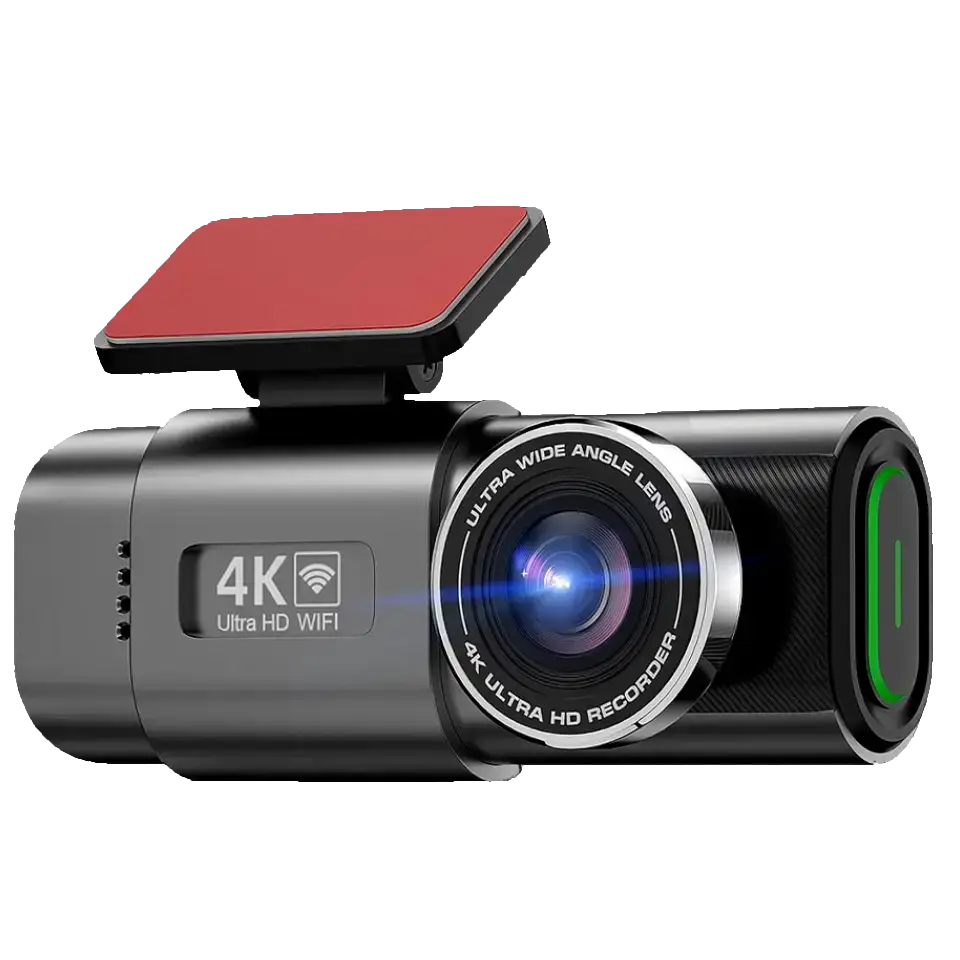
The Dashline 4K runs the same honest loop — short clips, oldest-unlocked overwritten first — with the safety nets already switched on. Its G-sensor auto-locks a clip the instant it feels an impact, so a hit-and-run in a car park saves itself. A microSD card is included, so the loop has room out of the box, and you can pull any clip straight to your phone over Wi-Fi — no cloud subscription, no monthly fee, footage stays yours on local storage.
Pick your coverage
One camera, three ways to cover the road
Every package runs the same auto-locking 4K loop. The only choice is how much of the car you want watched.
Choose your setup
One camera. Three levels of protection.
From everyday recording to full 24/7 surveillance — pick the package that matches how you drive.
Standard
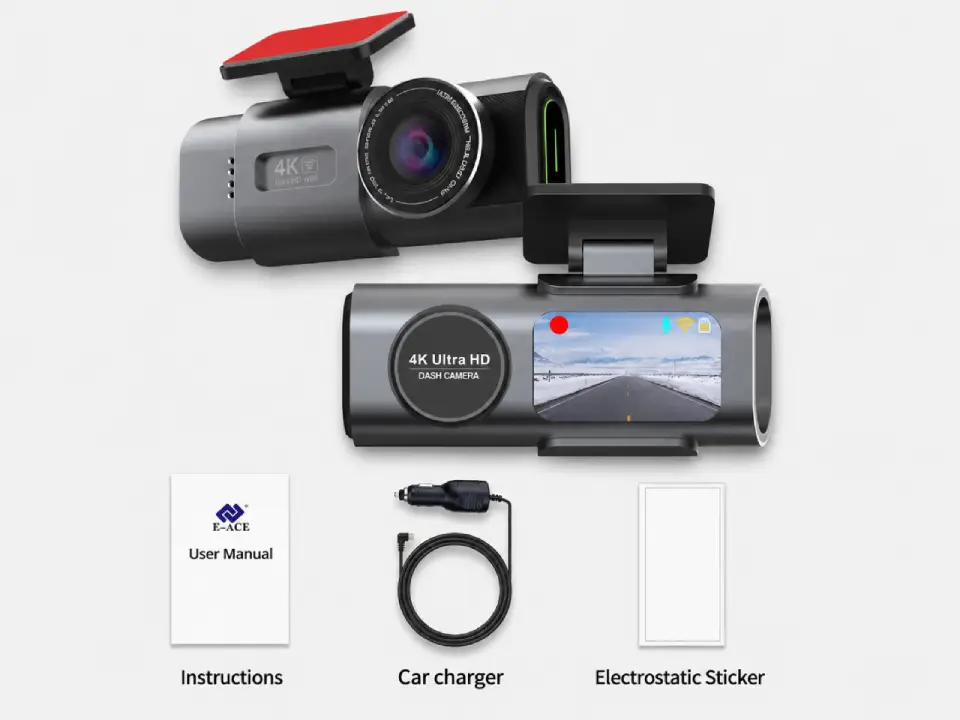
Package contents
- Front camera
- Car connection cable
- Magnetic sticker
Most popular
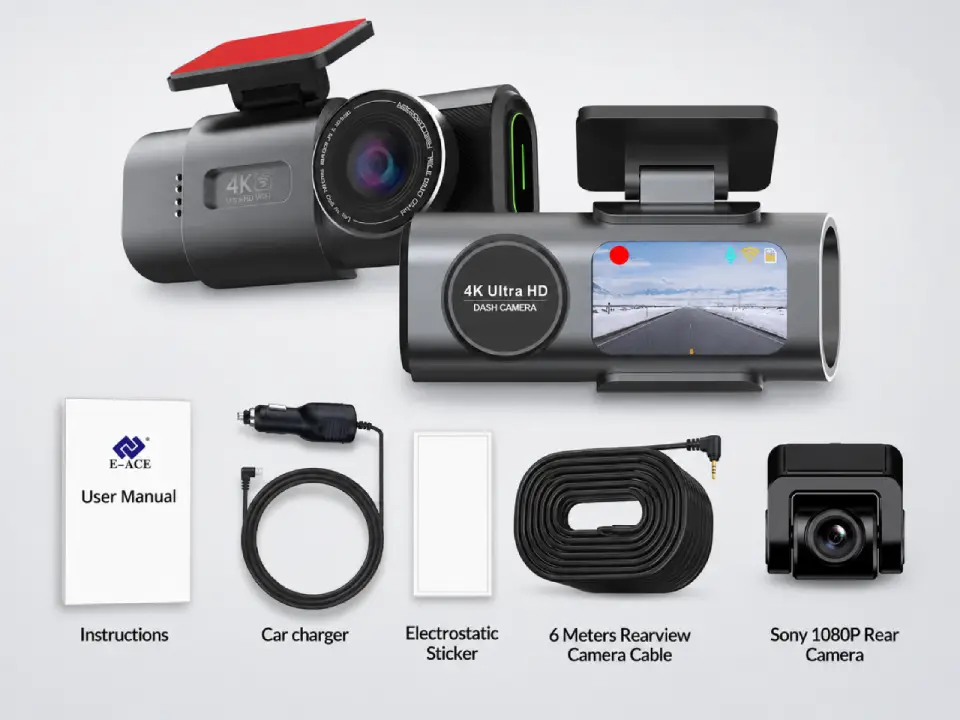
Dual Cameras
Package contents
- Everything in Standard
- Sony rear camera
- 6-meter connection cable
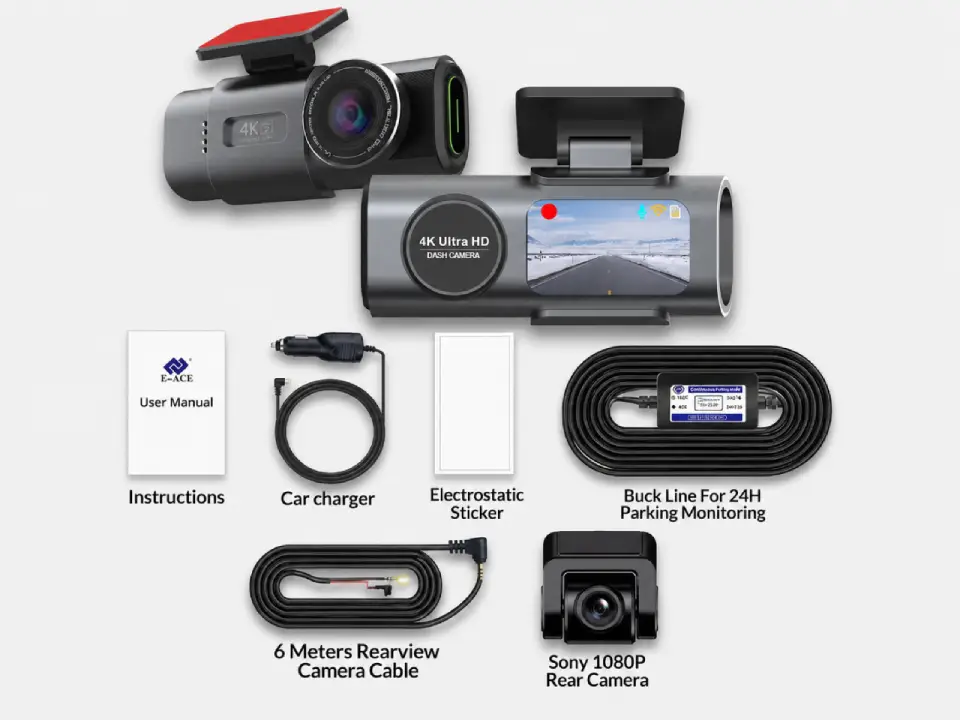
Full Protection
Package contents
- Everything in Dual Cameras
- 24h-compatible battery
- Live view from parked car
Free Shipping
5–10 days across Europe
Secure Payment
Apple Pay · PayPal · Stripe
2-Year Warranty
Full hardware coverage
30-Day Return
No questions asked
Questions, answered
Loop recording FAQ
Does a dash cam delete old footage automatically?
Yes — that’s loop recording working as intended. Once the memory card is full, the camera records over the oldest unlocked clip to make room for new footage. It never stops recording; it just reuses the space. Any clip you lock is skipped and kept.
How long before my footage gets overwritten?
It depends entirely on your card size and video resolution, not on a timer. A bigger card or a lower resolution holds more hours before the loop laps back. As a rough guide, a 128 GB card holds many hours of 4K — use a storage calculator for your exact recording window.
What does it mean to “lock” a clip?
Locking moves a clip into a separate protected folder that the loop won’t overwrite. You can lock manually with the emergency button or the app, and most cameras auto-lock when the G-sensor detects an impact. Locked clips stay until you delete them or the protected folder itself fills up.
Why did my dash cam not save the clip I needed?
Almost always because it was never locked. If a clip isn’t flagged as an event, the loop treats it like any other minute of road and eventually records over it. Turn on G-sensor auto-lock and get in the habit of pressing the manual lock when you see something.
Can locked clips fill up the whole card?
Yes. Locked clips are safe from the loop but still take up space on the same card. Save too many and the loop can run out of room to write new footage. Clear the protected folder onto your phone or PC regularly so the camera always has space to keep recording.
Do I need a special SD card for loop recording?
You need a high-endurance microSD card. Dash cams write continuously, all day, which wears out ordinary cards — often silently, so you only find out when a clip is corrupt. High-endurance cards are built for constant recording; reformat yours about once a month.
Does loop recording work in parking mode?
It can, but parking mode usually records only when the G-sensor or motion detection triggers, to save power and space. Those event clips are locked automatically. Parking mode needs continuous power — a hardwire kit or battery pack — because the 12V socket normally dies with the ignition.
Is loop-recorded footage still usable as evidence?
Absolutely — as long as you lock or back it up before the loop overwrites it. A locked clip keeps its timestamp and, on GPS models, its location and speed data. The key is getting it off the card quickly; footage you needed but let the loop erase can’t be recovered.
● REC · keep what matters
The loop never stops. Make sure it keeps the right clip.
A 4K loop that auto-locks on impact, an included card, and Wi-Fi to pull footage to your phone — no subscription, footage stays yours.

Leave a Reply